Online Induction >> Online Induction Tutorials
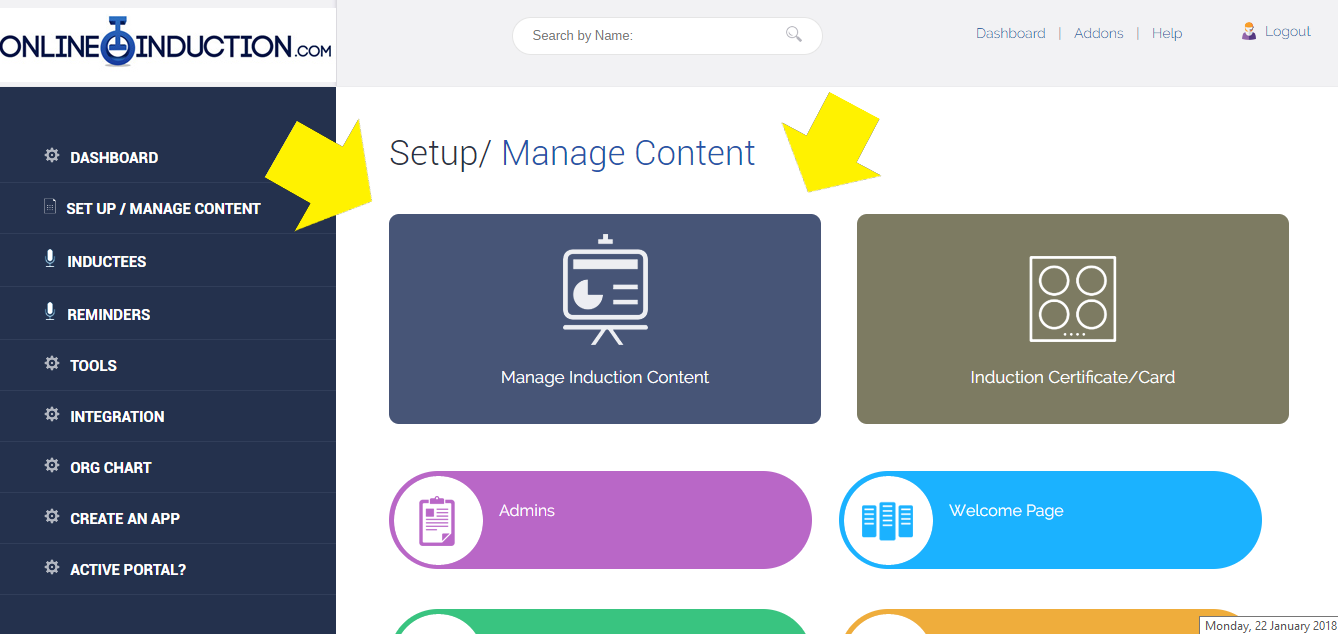
At the top of this section is a link to create induction new types. Click on "ADD".
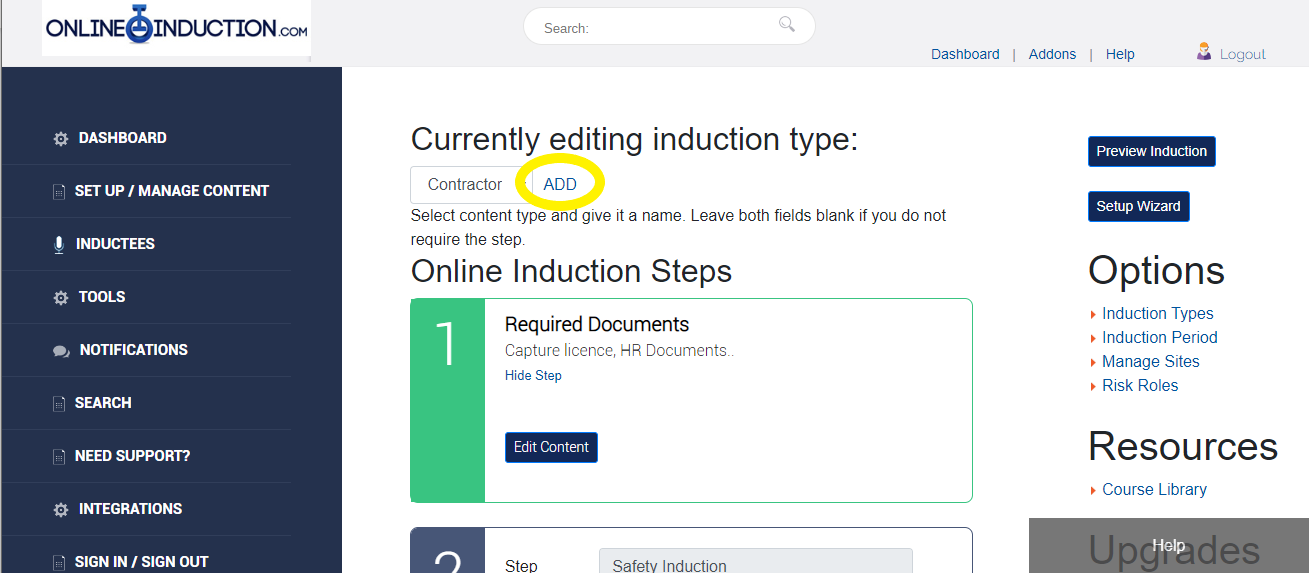
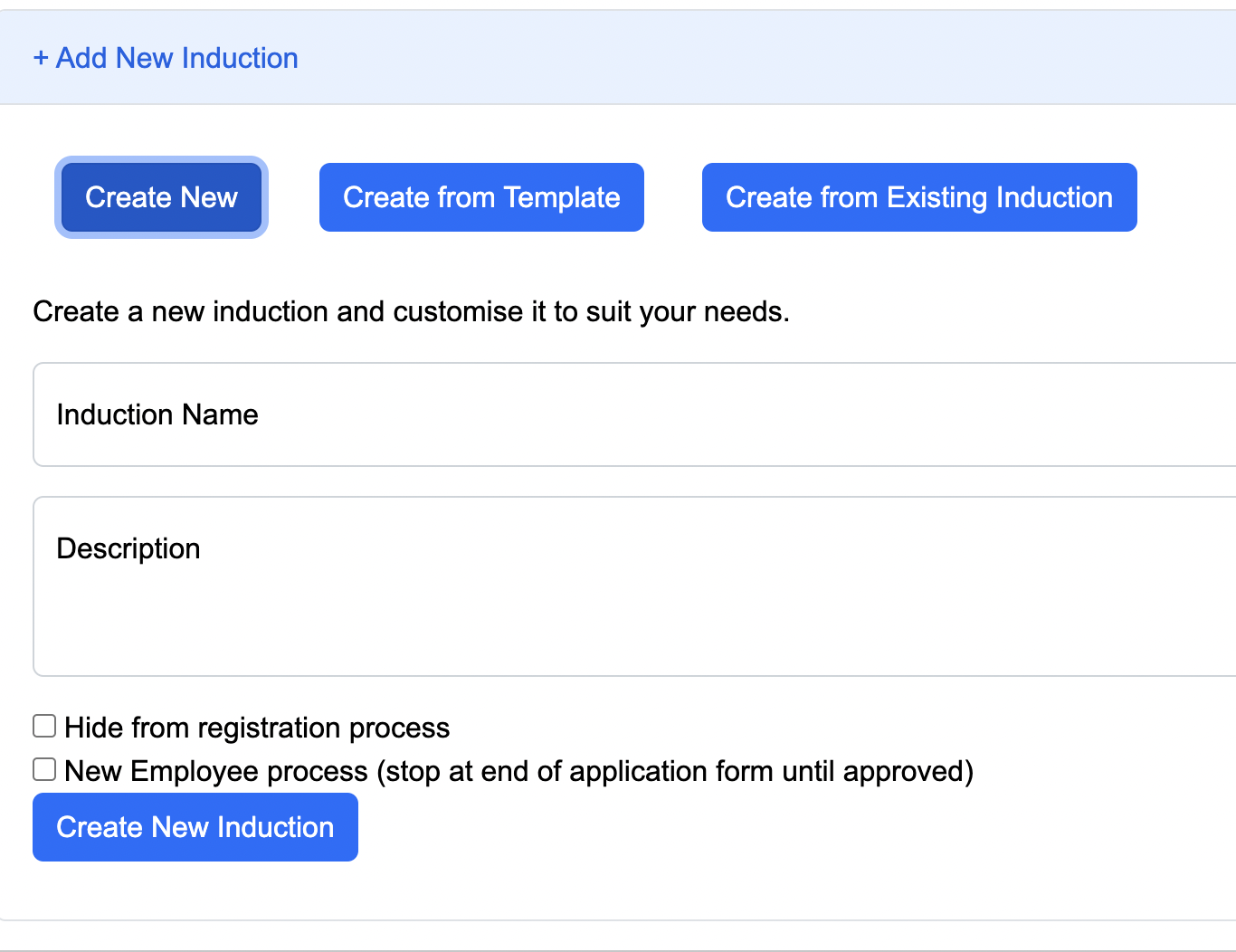
To create the induction click "Add". The induction type will immediately appear as a new option on the registration page.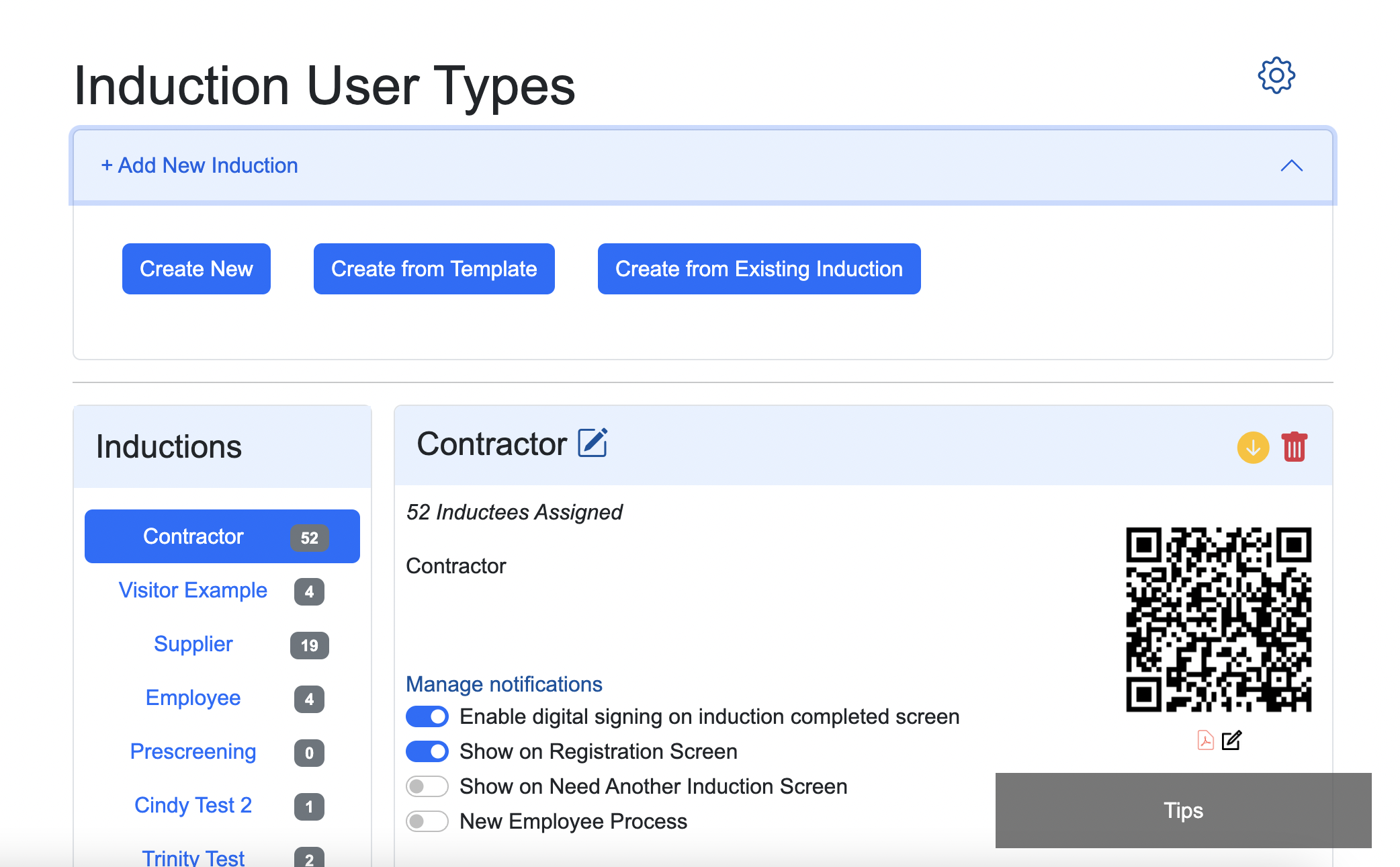
You can enable or disable the induction type from showing on the registration screen at any time by using the toggles Show on Registration Screen. This will be highlighted in blue when active.
You also have two further options, create a new induction Create from Template using content from our template library and also Create from Existing Induction allowing you to duplicate an entire induction under your new name. The original will remain in place.

Safety matters in and outside the workplace - read the full article here.
Our latest article talking about what insights and lessons learned. Check it out right here.
Check out our latest article about the best company induction design tips.
Check out our latest article about enhancing contractor management through mobile technologies.